AI agents // terminal hygiene
Terminal Sanitation: Stop AI Agents from Poisoning Your Shell History
Your terminal remembers more than your agent does. Make secrets disappear before convenience turns into durable plaintext evidence.
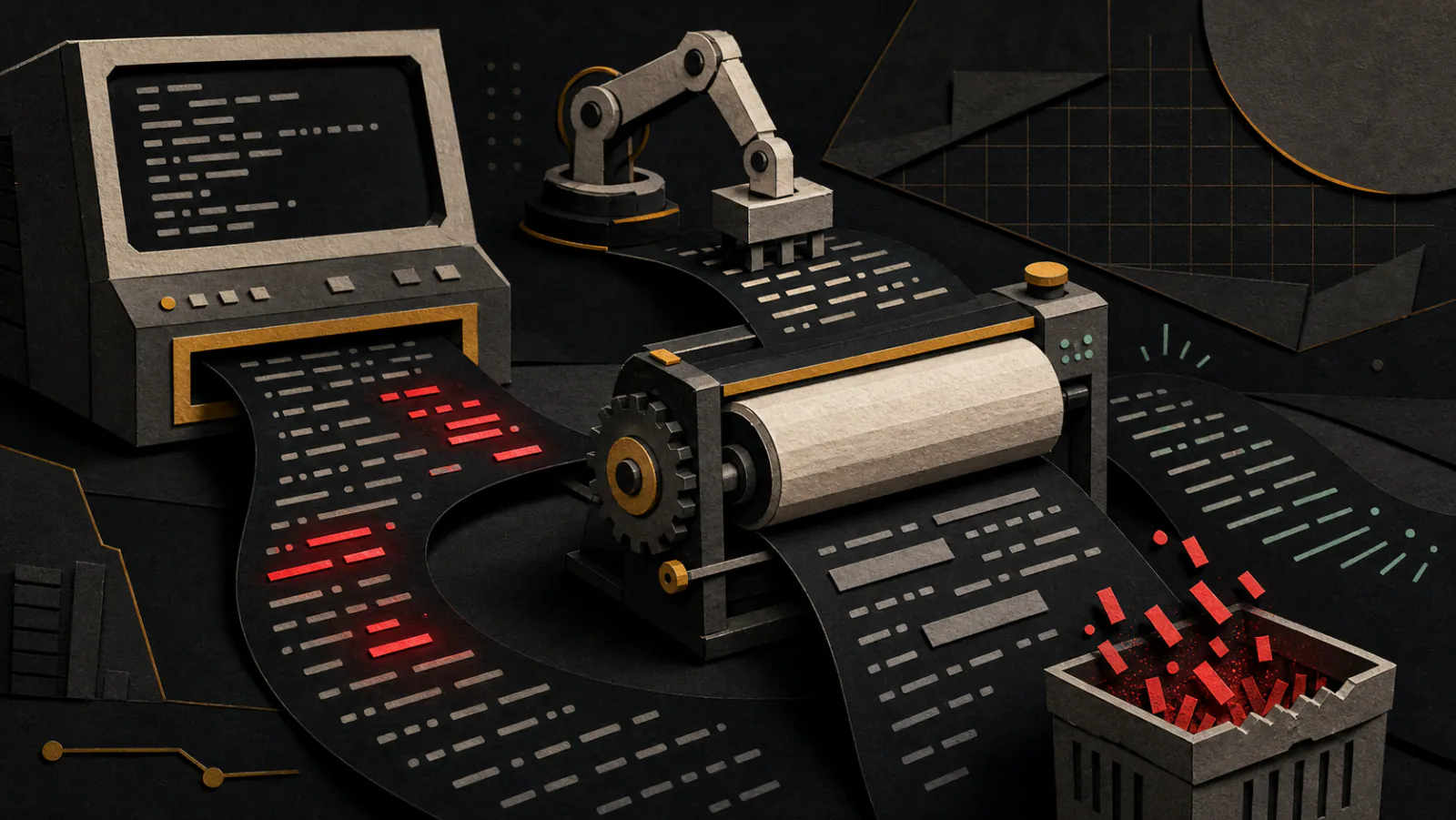
00 // The credential fossil record
A secret can outlive the task that exposed it
Autonomous coding agents need terminals. They install packages,
inspect containers, call cloud CLIs, and retry commands until
something works. The security problem begins when a command embeds
a token directly: docker login -u AWS -p SECRET. If
that line passes through an interactive shell, the literal command
can enter ~/.bash_history or
~/.zsh_history. Long after the agent exits, any process
running as your user—including a malicious package install—may be
able to read the file.
First, a useful correction: most agents launch commands as child processes, not as text typed into your parent interactive shell. Those child commands do not automatically appear in the parent’s history. Risk returns when an agent drives an interactive terminal, asks you to paste a generated command, opens its own interactive shell, or stores transcripts elsewhere. History hardening is one layer, not proof that the agent left no record.
Shell history also exists in two places. The running interactive
shell keeps an in-memory list; at configured moments or on exit it
writes that list to HISTFILE. Settings such as Bash
histappend and Zsh’s incremental append options change
when sessions share updates, which is why deleting one disk line
while another terminal remains open may not be permanent. That
second terminal can later write its older in-memory copy back.
Backups, home-directory sync, dotfile managers, and endpoint agents
may then replicate the mistake. The safest secret is the one that
never became command text.
Tip 01 // The magic space trick
Make one leading character mean “do not remember thisâ€
Bash’s HISTCONTROL accepts
ignorespace: lines beginning with a space are not added
to the history list. Zsh exposes the equivalent
HIST_IGNORE_SPACE option. Put the matching setting in
your shell startup file, reload it, and deliberately prefix a
sensitive command with one space.
export HISTCONTROL=ignorespace:ignoredups

# Reload:
source ~/.bashrc

# Leading space is intentional:
read -rsp "Token: " REGISTRY_TOKENsetopt HIST_IGNORE_SPACE
# Reload:
source ~/.zshrc
# Leading space is intentional:
read -rs "REGISTRY_TOKEN?Token: "; echo
Test with a harmless marker, run history 3, and confirm
the spaced line is absent before trusting the configuration. Bash
applies the decision to the first line of a multiline compound
command, so do not improvise complicated secret-bearing heredocs.
Zsh briefly keeps the most recent ignored line internally so it can
be edited, then removes it when another command is entered; pressing
space and Enter clears that short-lived entry immediately.
Do not confuse history suppression with argument privacy. A leading
space prevents one shell from remembering the line; it does not
change the argument vector presented to the program. While a command
runs, process inspection, debugging tools, audit systems, or an
agent’s own transcript may still capture a literal
--token secret-value. Standard input, a file descriptor,
or a native credential helper removes the value from the command
line itself. That is stronger than asking every recorder to forget
it afterward.
More importantly, stop putting credentials in arguments. Docker
documents --password-stdin specifically to prevent
passwords reaching shell history or logs. Read without echo, pipe
the variable, then erase it from the environment:
 read -rsp "Registry token: " REGISTRY_TOKEN; echo
 printf '%s' "$REGISTRY_TOKEN" |
  docker login --username AWS --password-stdin
 unset REGISTRY_TOKEN
Tip 02 // Dynamic AI subshell sandbox
Give the agent a session with no history destination
Leading spaces depend on memory and only govern lines accepted by the configured interactive shell. For autonomous work, create a launcher that runs in a subshell, unsets the history file, disables Bash history collection, and replaces itself with the agent. The parentheses matter: changes cannot leak back into your normal shell.
ai-secure() (
  unset HISTFILE
  HISTSIZE=0
  set +o history
  export AI_SHELL_SESSION=1
  exec claude "$@"
)
For Zsh, use the same subshell shape, unset
HISTFILE, set HISTSIZE=0 and
SAVEHIST=0, then exec claude "$@".
Bash’s manual is explicit: when HISTFILE is unset or
null, it does not save command history on exit. The harmless parent
command ai-secure may remain in your ordinary history;
activity inside the wrapper has no history file to write.
Verify the wrapper instead of trusting its definition. Record the
checksum and modification time of your real history file, launch
ai-secure, run only harmless test commands, exit, and
compare the file again. Then inspect the agent’s configuration
directory for session logs. If the tool starts an interactive shell
that reloads .bashrc and restores
HISTFILE, give that shell a restricted startup file or
configure it separately. A child process can always choose new
history settings.
This is sanitation, not containment. The agent still has your user’s filesystem and network privileges unless you separately sandbox them. It may write its own session database, create tool logs, or pass secrets in process arguments visible to same-user processes. Combine the wrapper with least-privilege credentials, a disposable workspace, tool approval, and the agent’s own telemetry controls.
Tip 03 // Automated history scrubbing
Redact atomically, and treat the result as damage control
Prevention sometimes fails. This sanitizer locks its own operation,
redacts common provider-style keys, credential flags, sensitive
assignments, and long Base64-looking strings, then replaces the
history file atomically with mode 0600. It never prints
a match. The Base64 rule is intentionally aggressive and may redact
hashes or harmless blobs; tune it for your environment.
#!/usr/bin/env python3
import fcntl, os, re, sys, tempfile
from pathlib import Path

R = "[REDACTED_BY_SANITIZER]"
DIRECT = re.compile(
    r"\b(?:sk-(?:proj-)?[A-Za-z0-9_-]{20,}|"
    r"sk-ant-[A-Za-z0-9_-]{20,}|"
    r"(?:AKIA|ASIA)[A-Z0-9]{16})\b"
)
ASSIGN = re.compile(
    r"(?i)\b((?:api[_-]?key|token|secret|password)="
    r")([^\s'\"]+)"
)
FLAG = re.compile(
    r"(?i)((?:--password|--token|--secret|--api-key)"
    r"(?:=|\s+))([^\s'\"]+)"
)
DOCKER = re.compile(
    r"(?i)(\bdocker\s+login\b[^\n]*?(?:-p|--password)"
    r"(?:=|\s+))([^\s'\"]+)"
)
BASE64 = re.compile(
    r"(?<![A-Za-z0-9+/])(?:[A-Za-z0-9+/]{4}){12,}"
    r"(?:==|=)?(?![A-Za-z0-9+/=])"
)

def scrub(text):
    text = DIRECT.sub(R, text)
    text = ASSIGN.sub(lambda m: m.group(1) + R, text)
    text = DOCKER.sub(lambda m: m.group(1) + R, text)
    text = FLAG.sub(lambda m: m.group(1) + R, text)
    return BASE64.sub(R, text)

target = Path(os.path.expanduser(
    sys.argv[1] if len(sys.argv) > 1
    else os.environ.get("HISTFILE", "~/.bash_history")
))
if not target.is_file():
    raise SystemExit(0)

lock = target.with_name(target.name + ".sanitize.lock")
with lock.open("a") as lockfile:
    os.chmod(lock, 0o600)
    fcntl.flock(lockfile, fcntl.LOCK_EX)
    original = target.read_text(
        encoding="utf-8", errors="surrogateescape"
    )
    cleaned = scrub(original)
    if cleaned == original:
        raise SystemExit(0)

    fd, temp = tempfile.mkstemp(
        prefix=target.name + ".", dir=target.parent
    )
    try:
        os.fchmod(fd, 0o600)
        with os.fdopen(
            fd, "w", encoding="utf-8", errors="surrogateescape"
        ) as output:
            output.write(cleaned)
            output.flush()
            os.fsync(output.fileno())
        os.replace(temp, target)
    finally:
        if os.path.exists(temp):
            os.unlink(temp)
Make it executable and run it against a copied history file first. Once verified, a Bash exit hook can flush new commands, sanitize the file, clear in-memory history, and reload the cleaned copy:
shopt -s histappend

sanitize_history_on_exit() {
  [[ -n "${HISTFILE:-}" ]] || return
  builtin history -a
  "$HOME/.local/bin/sanitize-history" "$HISTFILE"
  builtin history -c
  builtin history -r
}
trap sanitize_history_on_exit EXIT
Multiple simultaneously exiting shells can still race because Bash
does not participate in the sanitizer’s lock. Keep the preventive
controls enabled and add a periodic safety net if needed:
17 * * * * ~/.local/bin/sanitize-history
              ~/.bash_history
. For Zsh, target
~/.zsh_history and test its extended-history format on
a copy before automation.
Roll this out like a migration. First create a synthetic history file containing fake provider-shaped tokens, ordinary Git hashes, Base64 test data, quoted flags, and multiline commands. Run the sanitizer, review the entire output, and adjust patterns before touching real history. Next run it manually against the live file with every other terminal closed. Only then enable the exit hook. Avoid creating an automatic “before†backup: a pristine backup of leaked secrets defeats the operation. If backups already captured the file, handle retention through the organization’s incident process.
Regex cannot understand intent. A long Base64 value may be a harmless fixture, while an unusual secret may look like ordinary prose. Count replacements without logging their values, monitor false positives, and prefer provider-maintained secret scanners for broad coverage. This script is a local safety net, not managed credential detection.
04 // What history sanitation cannot erase
Clean the other copies, then rotate the credential
Terminal residue
Scrollback, multiplexer logs, screen recordings, clipboard managers, and agent transcripts are separate stores.
Process exposure
A secret passed as an argument may be visible while the process runs even if history ignores the command.
Tool persistence
Docker and cloud CLIs may save credentials in configuration files. Prefer native keychains and credential helpers.
Redaction reduces future discovery; it does not make an exposed credential trustworthy again. Revoke or rotate the token, inspect agent and terminal logs, check synchronized dotfile backups, and review where the credential was used. The winning design is boring: short-lived scoped tokens enter through standard input or a credential helper, agents run in isolated sessions, history records useful commands rather than secrets, and the scrubber catches only the mistakes that slip through.
Finally, protect the history that remains: keep it readable only by your account, exclude it from casual cloud sync, shorten retention where practical, and never paste its raw contents into an AI support conversation. Useful command history is a productivity tool. Treat it with the care you would give logs from privileged automation, because that is increasingly what it has become.
Sources // primary documentation