Full-stack AI // stream diagnostics
Debugging Streaming AI Responses: Chrome DevTools Tips & Tricks for Full-Stack AI Engineers
Inspect live SSE events, manufacture token stutter, and feed your UI hostile fixtures without paying a model to misbehave on command.
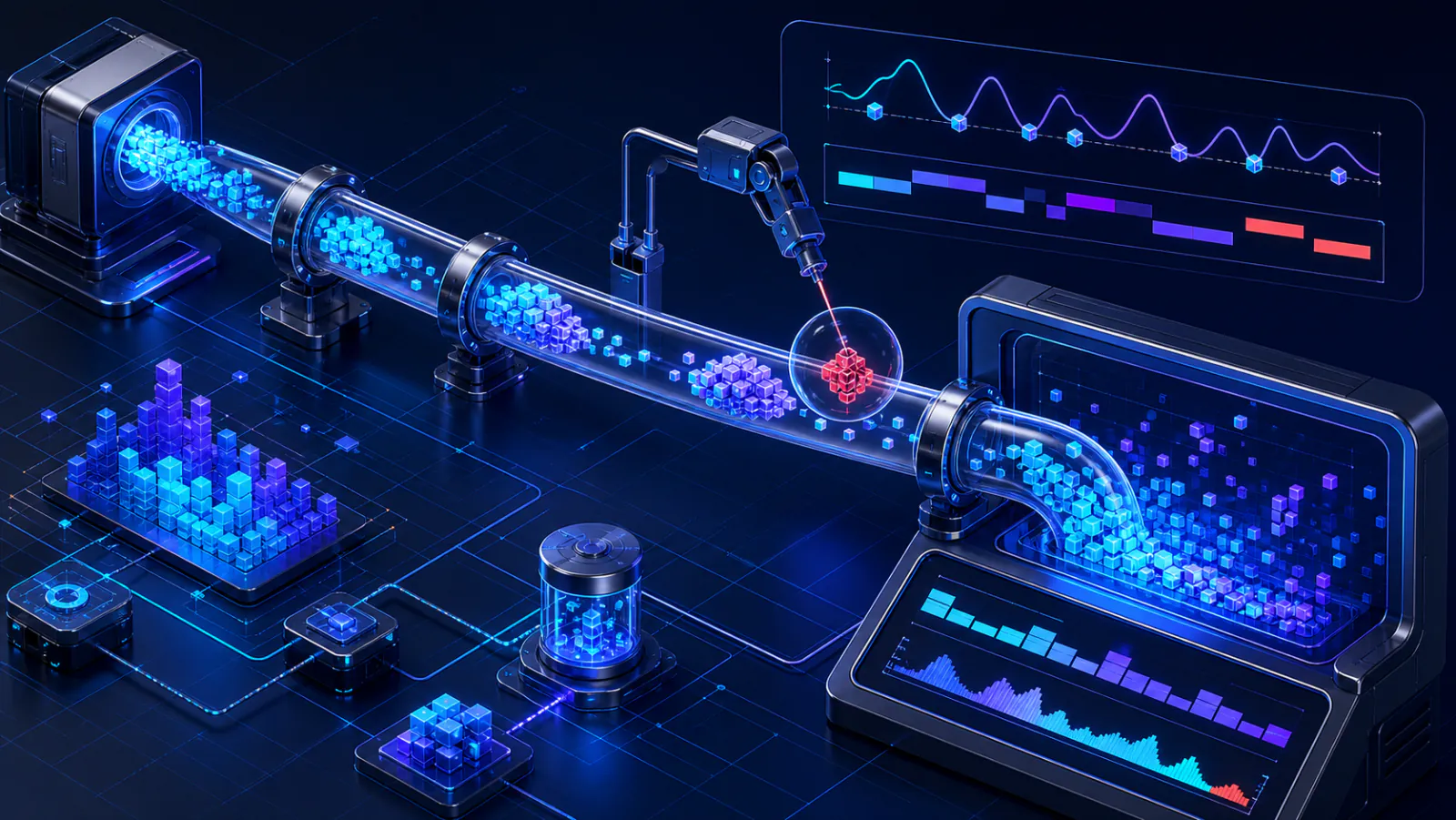
00 // A response that refuses to be one response
Your green 200 status can still contain a broken experience
Traditional request debugging assumes a tidy lifecycle: send a
request, wait, inspect the completed body. An AI interface violates
that rhythm. The server may emit Server-Sent Events, the browser may
expose bytes through a ReadableStream, a UTF-8 character
may straddle chunks, and your parser may receive half a JSON object.
Meanwhile, React is re-rendering, Markdown is opening fences it has
not closed, and the user is watching every mistake happen live.
The Network panel’s ordinary Response tab eventually shows the accumulated body, but accumulation hides sequence. Streaming bugs live in the gaps: time to first token, delay between chunks, buffering by a proxy, cancellation after navigation, and a renderer that does expensive work for every three-character delta. Chrome DevTools has better instruments for those questions, provided you know where they are—and what each one cannot simulate.
Tip 01 // The hidden EventStream tab
Stop reading SSE as one enormous text file
Open DevTools before starting generation, choose Network, trigger the AI request, and select the long-running fetch or XHR row. For a stream Chrome recognizes as events, an EventStream sub-tab appears beside the familiar Headers, Preview, Response, and Timing views. Chrome’s documentation explicitly supports streamed events received through Fetch, EventSource, and XHR.
Keep Network recording active before the request begins.
Choose the pending stream request, not the initial page load.
Open EventStream and filter events with a regular expression.
Compare event order with your own chunk timing marks.
The view separates event payloads as they arrive, so a missing blank
line, unexpected event type, duplicated terminal marker, or malformed
data: field becomes visible immediately. If the tab is
absent, inspect Response Headers first. An SSE endpoint should return
Content-Type: text/event-stream; a JSON content type
tells the browser and every intermediary a different story. Also
verify that you selected the actual stream rather than an OPTIONS
preflight or a framework’s metadata request.
if (!response.body) throw new Error("Missing response stream");

const reader = response.body
  .pipeThrough(new TextDecoderStream())
  .getReader();

let previous = performance.now();
let chunk = 0;

while (true) {
  const { value, done } = await reader.read();
  if (done) break;

  const now = performance.now();
  console.debug("stream:chunk", {
    chunk: chunk++,
    chars: value.length,
    gapMs: +(now - previous).toFixed(1),
  });
  previous = now;
  parser.push(value); // parser must retain incomplete frames
}
This log answers a more useful question than “Was the request slow?â€:
did bytes reach JavaScript smoothly, and did the main thread process
them promptly? Keep decoding stateful with
TextDecoderStream or TextDecoder.decode(...,
{ stream: true }). Decoding each byte chunk independently can
corrupt a multibyte character whose bytes arrive separately.
Tip 02 // Simulate token stutter
High latency and low bandwidth test different failures
DevTools’ built-in mobile presets are convenient, but an AI stream is usually tiny compared with an image download. To expose awkward pauses without making the test meaningless, create a custom profile: open DevTools Settings, choose Throttling, add a Network throttling profile, then set its download speed, upload speed, and latency. Select it from the Network panel’s throttling menu before starting a new stream.
These are test values, not a claim about a particular carrier. Decent bandwidth lets normal assets finish; exaggerated latency makes startup and delivery gaps obvious. Run a second pass with the Performance panel’s calibrated CPU slowdown. Network throttling reveals transport assumptions. CPU throttling reveals whether repeated Markdown parsing, syntax highlighting, auto-scrolling, or state reconciliation monopolizes the main thread.
Watch the interface, not merely the request. Does the send button remain disabled forever after an abort? Does the cursor jump because the entire message node is replaced? Does every chunk force the page to the bottom even after the user scrolls upward? Can the user cancel during the initial silent period? Capture three numbers in every run: time to first visible token, largest inter-chunk gap, and time from final event to stable UI. Those measurements turn “streaming feels janky†into a regression test.
Repeat the run with DevTools closed before drawing production conclusions: instrumentation itself has overhead. The throttled run is a stress scenario, not a field measurement. Use it to make failures reproducible, then compare the fix against real-user telemetry segmented by device and connection quality. Synthetic pain finds the bug; field data tells you how often customers feel it.
Tip 03 // Local Overrides for hostile payloads
Make the model fail deterministically—and for free
DevTools Local Overrides can replace the content of most XHR and fetch responses. In Network, right-click the completed AI request, choose Override content, select and authorize a local folder when prompted, then edit the saved response under Sources > Overrides. Save, reload, and Chrome serves the local version instead of the remote body. A purple marker identifies overridden content, and enabling Overrides disables cache.
event: delta
data: {"text":"## Unclosed heading **and emphasis"}

event: delta
data: {"text":"\\n```json\\n{\\\"items\\\":[1,2,"}

event: delta
data: {"text":"3],\\\"nested\\\":{\\\"stillOpen\\\":true}"}

event: delta
data: {"text":"\\n<img src=x onerror=alert(1)>"}

event: done
data: {"finish_reason":"stop"}
Build a fixture library: split Markdown delimiters across events, include a very long unbroken string, send duplicate completion events, omit the terminal event, place a JSON boundary in the middle of an escape sequence, and include HTML that must remain inert. Assert safe rendering—do not merely eyeball it. The browser should treat model output as untrusted data, sanitize any permitted HTML, bound rendered length, and recover from a parser error without preserving a permanently “generating†state.
Bonus // When timing itself is the bug
Use a tiny local SSE endpoint with an explicit schedule
Point a development-only API base URL at this endpoint when you need reproducible bursts, long silences, or a disconnect halfway through a frame. It writes valid SSE records at chosen intervals, so both EventStream and your application observe real progressive delivery.
import express from "express";
import { setTimeout as wait } from "node:timers/promises";

const app = express();
const script = [
  [0,   { text: "Streaming" }],
  [180, { text: " normally" }],
  [2200, { text: " ...after a pause" }],
  [90,  { text: "\\n```json\\n{\\\"ok\\\":true}\\n```" }],
];

app.get("/debug/stream", async (_req, res) => {
  res.set({
    "Content-Type": "text/event-stream",
    "Cache-Control": "no-cache, no-transform",
    "X-Accel-Buffering": "no",
  });
  res.flushHeaders();

  for (const [delay, payload] of script) {
    await wait(delay);
    res.write(`event: delta\ndata: ${JSON.stringify(payload)}\n\n`);
  }
  res.end("event: done\ndata: {}\n\n");
});

app.listen(4040);
Never expose a debug route like this in production. Keep fixtures free of real prompts and credentials, and add one deliberate failure mode at a time: destroy the socket, send invalid UTF-8, pause longer than the client timeout, or return a non-streaming error before headers. Now a bug report can name the schedule and fixture instead of hoping a paid model recreates yesterday’s mood.
04 // The five-minute debugging loop
Separate protocol, transport, parser, and renderer
EventStream: are frames valid, ordered, and terminated?
Throttling: does latency expose timeout or cancellation bugs?
Overrides: can malformed boundaries and hostile text be handled?
Performance: are chunk updates blocking input or shifting layout?
Start with the lowest broken layer. If EventStream shows malformed
frames, polishing React will not help. If the frames are clean but
your timing log pauses while the main thread is busy, the network is
innocent. If the parser emits correct deltas but the DOM thrashes,
batch rendering work behind requestAnimationFrame or a
short cadence rather than committing every token individually.
Streaming stops being mysterious once “the response†becomes four observable systems. DevTools supplies the lenses; deterministic fixtures supply repeatability. Together they let you debug the uncomfortable seconds while an answer is being born, not only the tidy text left behind afterward.
Sources // official documentation